65", 75", or 86"? How to Choose the Right Interactive Flat Panel Size for Your Space
Sep 21, 2026
When evaluating interactive flat panels (IFPDs) for a school district or corporate office, it’s easy to get bogged down in technical specifications—processor architectures, operating systems, or touch points. However, one of the most critical factors governing user engagement and long-term satisfaction is far simpler: selecting the right screen size.
Deploying a screen that is too small leads to eye strain and poor engagement for people at the back of the room. Conversely, overspecifying a massive display for a compact huddle space wastes budget and creates visual clutter.
Whether you are fitting out a 10-person huddle space or a 100-seat lecture hall, here is how to calculate the optimal panel size for your space.
The 4-6-8 Rule: A Quick Visual Benchmark
Before looking at room dimensions, IT managers often rely on the industry-standard 4-6-8 Rule for visual display sizing:
Analytical Viewing (4x screen height): For detailed drawings, spreadsheets, or code.
Basic Viewing (6x screen height): For standard presentations and 4K video.
Passive Viewing (8x screen height): For general video content where fine detail isn’t critical.
To keep things straightforward in real-world environments, display size usually maps directly to viewing distance and room capacity.
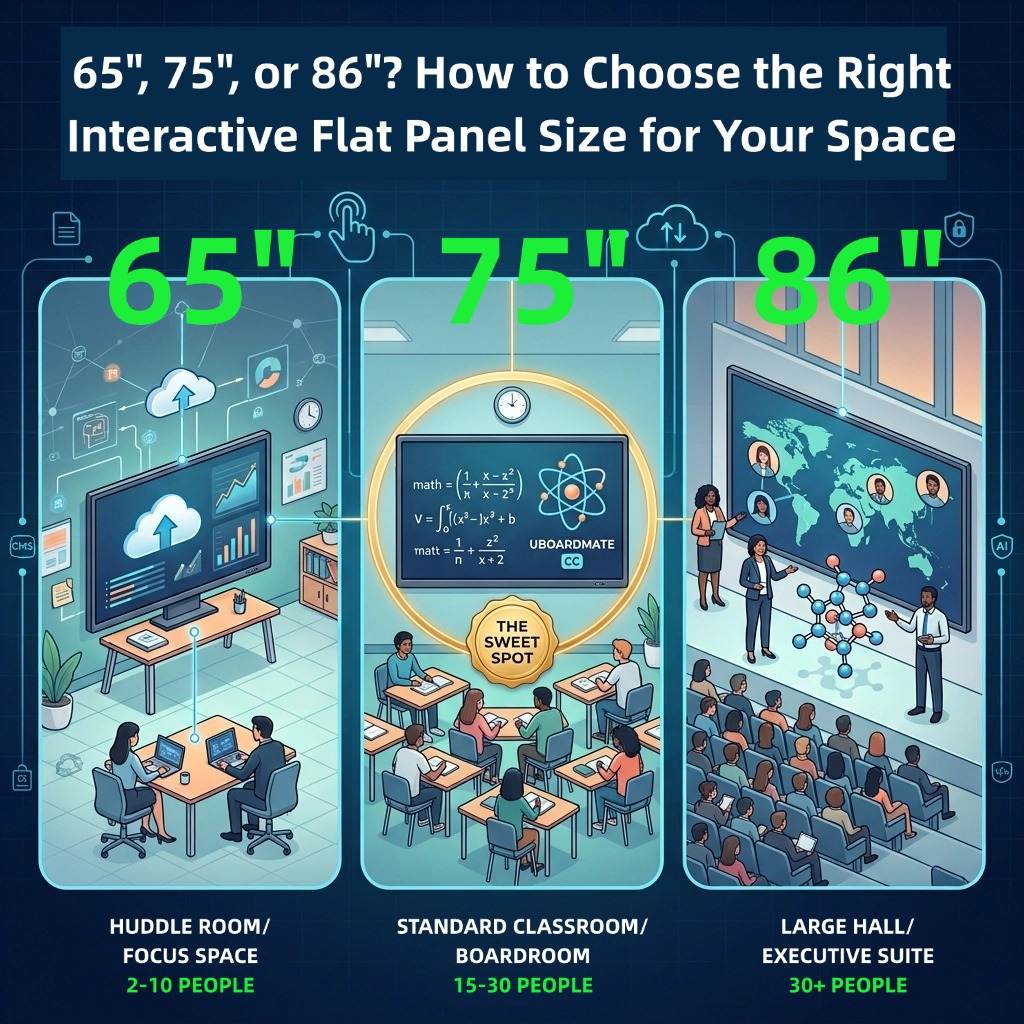
1. 65 Inch: Built for Huddle Rooms & Focus Spaces
The 65-inch display is the workhorse of small-scale collaboration. It is designed for tight spaces where participants sit close to the screen and require quick, touch-interactive control.
Ideal Viewing Distance: 1.5 – 3 meters (5 – 10 feet)
Typical Room Capacity: 2 – 10 people
Best Applications: Small huddle rooms, breakout spaces, focus rooms, and specialized instruction labs.
Why it works: At close range, a larger display forces users to turn their heads constantly to read content. A 65-inch panel keeps the entire display within the presenter’s central field of vision while maintaining tight 4K pixel density for up-close digital annotation.
2. 75 Inch: The "Sweet Spot" for Standard Classrooms & Boardrooms
If there is a universal size in the IFPD market, it is the 75-inch panel. It represents the optimal balance between visual real estate, physical wall space, and budget efficiency.
Ideal Viewing Distance: 3 – 5 meters (10 – 16 feet)
Typical Room Capacity: 15 – 30 people
Best Applications: K-12 classrooms, corporate meeting rooms, and mid-sized training spaces.
Why it works: In a standard classroom setup, students in the back row are typically sitting about 4 to 5 meters away from the front board. A 75-inch screen ensures that standard 24pt text and high-definition diagrams remain fully legible from the farthest seat without requiring aggressive digital zooming.
3. 86 Inch: Designed for Large Lecture Halls & Executive Spaces
When engagement across a large, deep room is non-negotiable, the 86-inch display is the standard choice. It provides a vast canvas that accommodates rich multi-window workflows and large-group presentations.
Ideal Viewing Distance: 5 meters and beyond (16+ feet)
Typical Room Capacity: 30 – 60+ people
Best Applications: University lecture halls, large corporate training centers, executive boardrooms, and open-plan collaborative spaces.
Why it works: Beyond sheer scale, an 86-inch display fundamentally improves group dynamics. It provides the physical surface area required for true multi-user collaboration, allowing two to three people to write, annotate, and manipulate onscreen tools side-by-side without feeling cramped or blocking each other's view. Additionally, its expansive visual real estate provides an immersive, wide field of vision, ensuring that multi-window workflows—such as running a live video feed alongside a shared digital whiteboard—remain clear and high-impact for every participant in the room.
Key Technical Factors Beyond Screen Size
Choosing the right physical footprint is only the first step. To ensure a display delivers high operational efficiency and long-term value across its lifecycle, purchasing teams should evaluate three technical pillars:
Native 4K UHD & Anti-Glare Visuals: Across all size configurations, native 4K resolution is non-negotiable to prevent pixelation on larger panels. Commercial-grade anti-glare glass ensures high legibility under harsh overhead lighting or direct sunlight.
Core Hardware Architecture (SoC, Mainboard, Camera & Storage): The smooth execution of daily tasks relies on what powers the panel. Look for integrated mainboard designs (such as 5-in-1 architecture) and high-performance SoCs that optimize thermal management, reduce internal failure points, and offer sufficient RAM/storage to prevent throttling. Additionally, integrating high-resolution built-in cameras (e.g., 48MP with AI auto-framing) and multi-microphone arrays ensures remote collaboration and hybrid classroom sessions run natively without extra peripheral clutter.
Integrated Software & Cloud Ecosystem: A great display requires seamless integration with specialized teaching, collaboration, and management software:
Education & Interactive Teaching Applications: For academic environments, the system must support comprehensive lesson preparation and delivery tools. Dedicated software suites like Uboardmate CC provide essential teaching utilities—including subject-specific tools, interactive lesson templates, AI-assisted learning features, real-time classroom polling, and mobile podium integration.
Real-Time Collaboration Tools: Modern workflows demand cloud-based teamwork. Platforms featuring cloud whiteboard solutions like UBoard Mix enable real-time, multi-user infinite canvas collaboration, alongside smooth, cross-platform wireless screen-sharing utilities for frictionless device casting.
Centralized Fleet Management: Built-in Remote Management (CMS) software allows IT administrators to remotely push firmware updates, manage security policies, and schedule auto-power cycles across every screen in the institution.
Summary Checklist for Purchasing Teams
Selecting the right interactive flat panel isn't about buying the largest screen available—it’s about matching room geometry with the right hardware architecture and software ecosystem.
Room Type
Recommended Size
Primary Use Case
Key Benefit
Huddle Room / Focus Space
65"
Small group collaboration (2-10 people)
Compact footprint, comfortable up-close interaction
Standard Classroom / Boardroom
75"
Primary instruction & meetings (15-30 people)
The "sweet spot" for standard viewing distances
Large Hall / Executive Suite
86"
Large group interaction (30+ people)
Expansive surface for multi-user collaboration & high engagement
By standardizing software tools—such as Uboardmate CC for teaching and uBoardMix for dynamic whiteboarding—across a single, versatile hardware lineup (such as the PRIMA A311Y3 Series in 65", 75", and 86"), institutions can streamline IT support while providing every room with a display tailored to its specific space.
Frequently Asked Questions (FAQ)
Q1: Is a 75-inch screen large enough for a standard 30-student classroom?
A1: Yes. Under industry-standard AV viewing guidelines (the 6-6-8/4-6-8 rule), a 75-inch display is considered the "sweet spot" for standard classrooms where the farthest row of desks is located within 3 to 5 meters (10 to 16 feet) from the front board.
Q2: Can we replace an old 84-inch legacy interactive board with a new 86-inch IFPD using the same wall mount?
A2: In most cases, yes, provided the existing mount supports the required VESA hole pattern and weight specification of the new 86-inch display. However, due to built-in cameras, microphone arrays, and modern slim bezels, we always recommend verifying VESA patterns and wall load ratings before installation.
Q3: How does screen size affect the usability of interactive software like Uboardmate CC or UBoardMix?
A3: While the software user interface scales automatically across all screen sizes (65", 75", and 86"), larger displays (such as 86 inches) offer significantly more physical elbow room. This allows two or three users to stand side-by-side to interact, draw, or utilize split-screen tools simultaneously without overlapping.
Read More
 Web
Web





 IPv6 network supported